Table of Contents [expand]
Last updated June 30, 2026
This integration is only available for Heroku Enterprise customers.
The Heroku GitHub Enterprise Cloud Integration is the recommended way to integrate with GitHub. It uses GitHub Apps, which are more secure compared to personal OAuth tokens and offer more granular permissions. Using the integration, you don’t need a service account as a separate user because the GitHub app acts on its own behalf, acting via the API directly using its own identity.
This integration provides the following advantages over Heroku GitHub Deploys:
- If the user who set up the integration leaves the GitHub org, the deploys still work.
- Offers more permissions and control for repos.
Prerequisites
To set up the integration, you must have:
- The
managepermission for an active Heroku Enterprise account - Full access to the GitHub Enterprise Cloud org that contains all the repos to use with this integration
- No unowned pipelines
If you closed your contract or are transitioning to Enterprise, wait for your Enterprise account to finish creating. You can only use the feature on Enterprise accounts.
Installing the GitHub App
After installing the Heroku GitHub App and all pipelines are using it, there’s no easy way to switch back to your old configuration. Uninstalling the GitHub app means disconnecting all your apps and pipelines that you must manually reconnect if you decide to use personal OAuth tokens.
Installing the Heroku GitHub App doesn’t disconnect your existing connection with GitHub, but you must move all your pipelines to using the GitHub app after installing.
After enabling the feature for your company, you can install the Heroku GitHub App from the Enterprise Account. All users with manage permission at the Enterprise Account level can see the installation option under the Settings tab of the Enterprise Account:
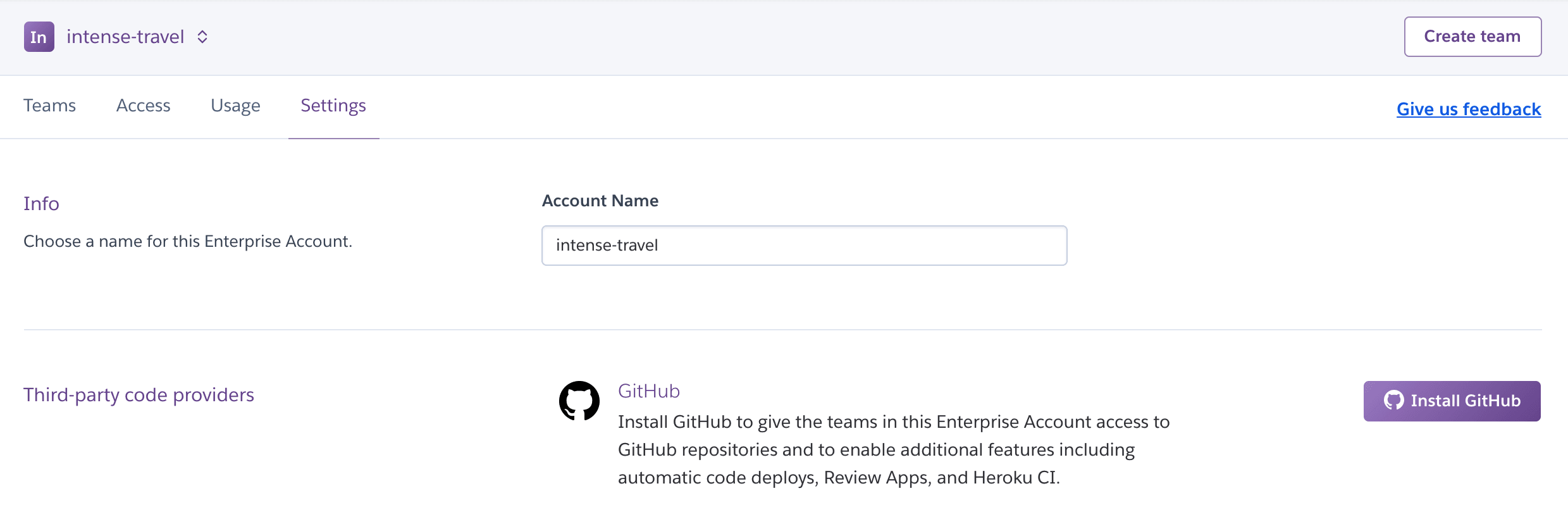
By selecting Install GitHub, it asks you to authenticate to GitHub and select the org that you want to install the GitHub app on:
If you installed the Heroku GitHub App for a GitHub org already, you see Configure in front of the org name.
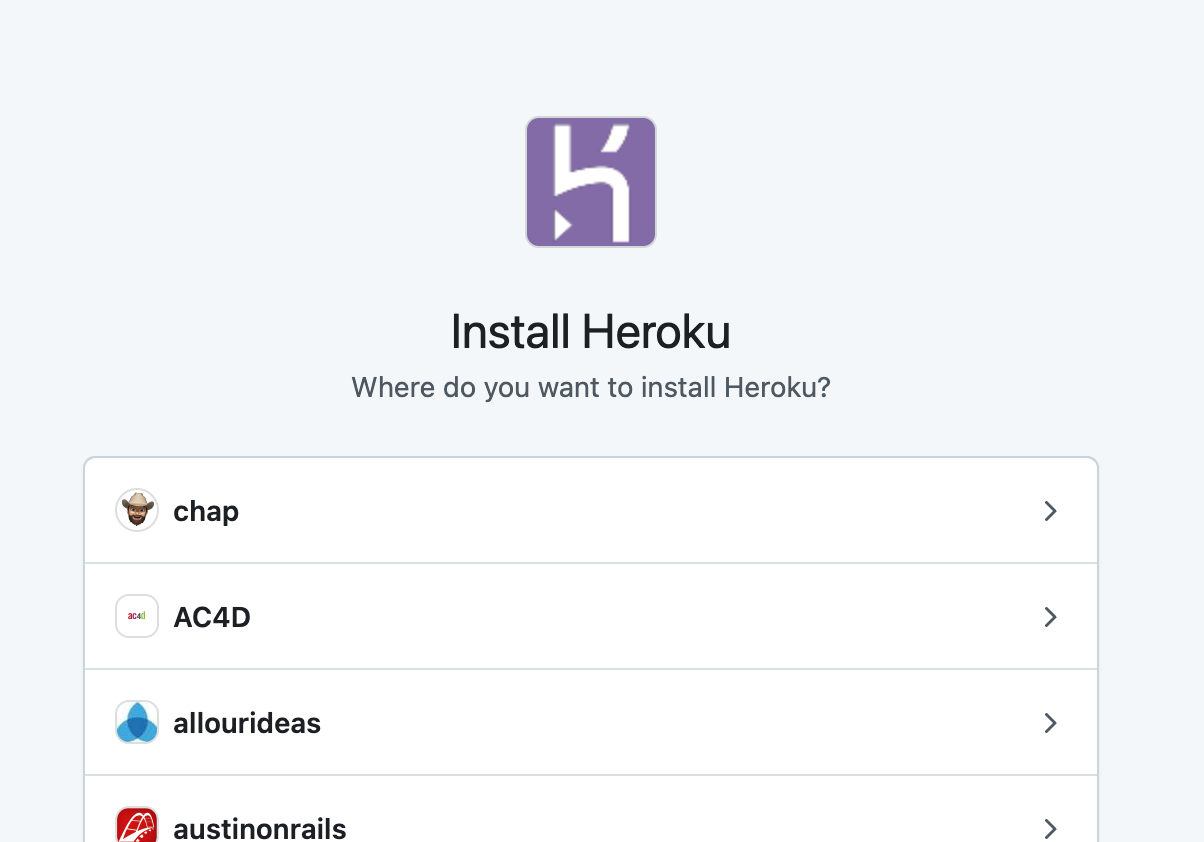
All the repositories that you use across the entire Enterprise Account must be under the same GitHub org for this integration.
Select all repositories for access:
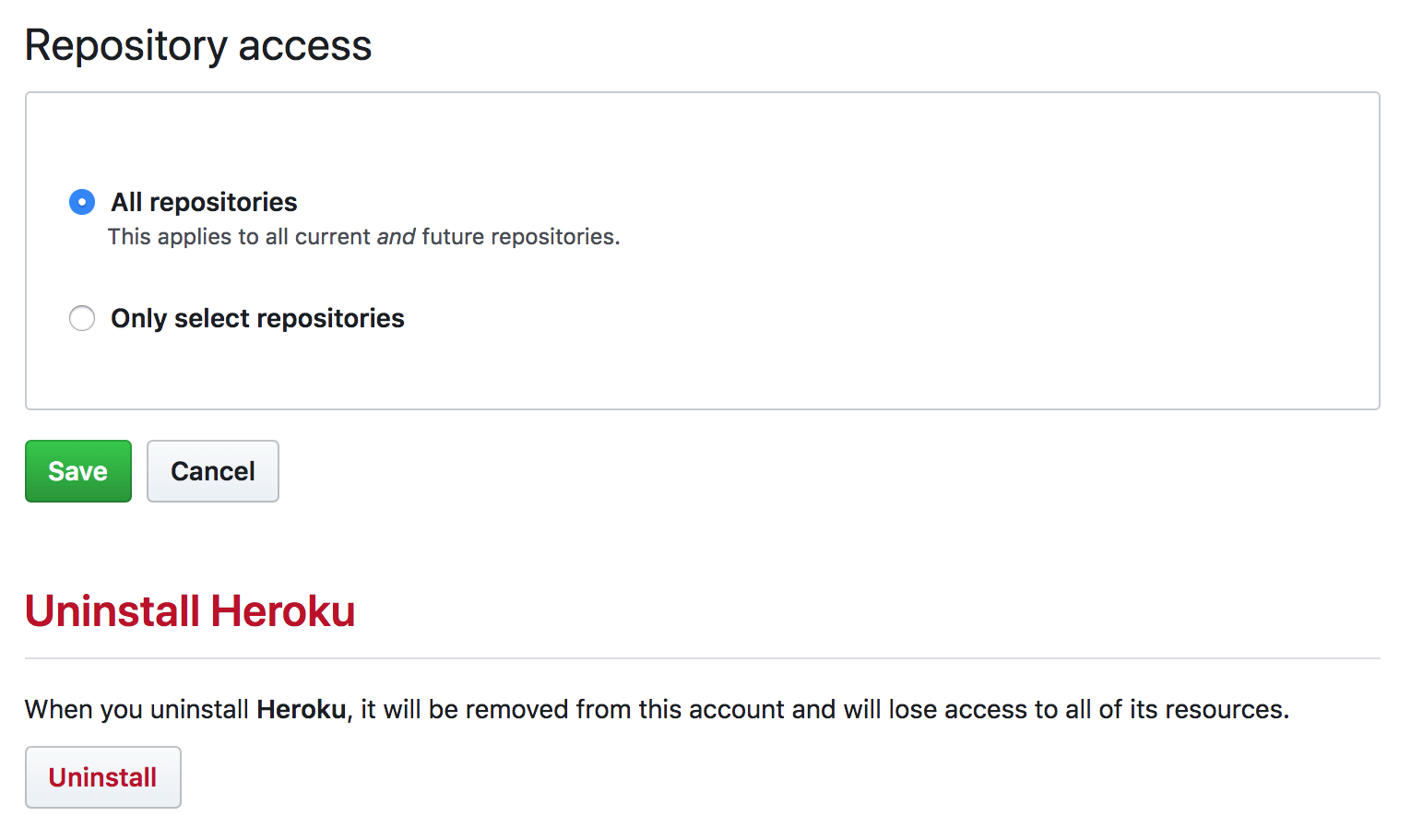
Or select a specific repository to allowlist:
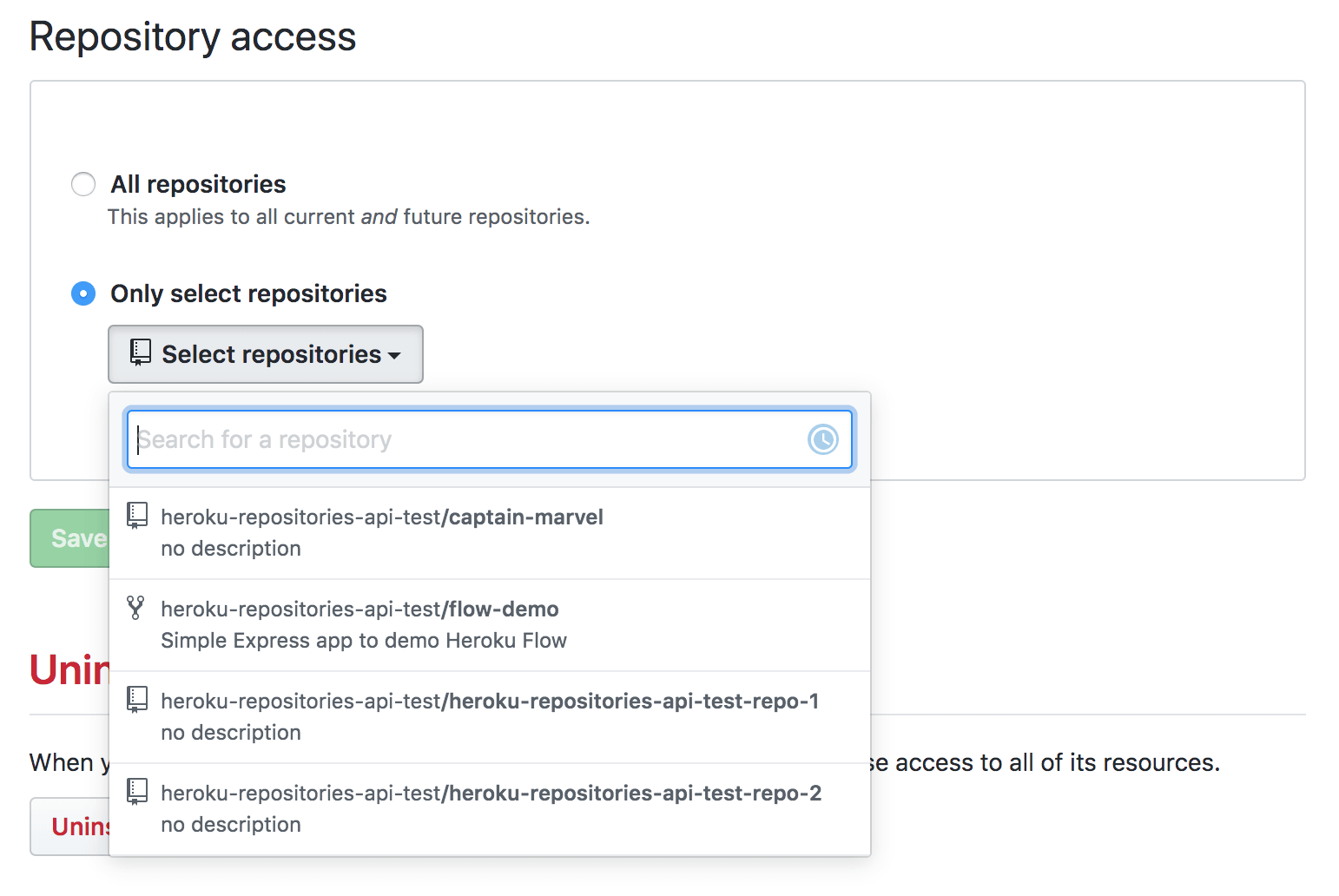
After the installation is complete, you can view all the installations in the Settings page:
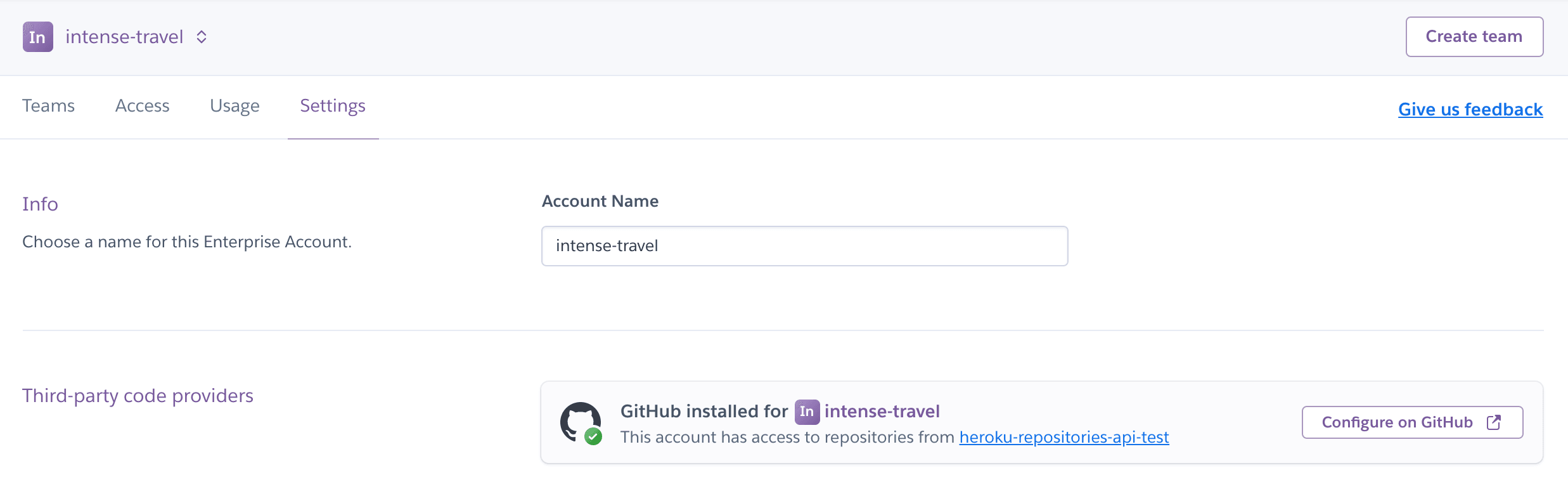
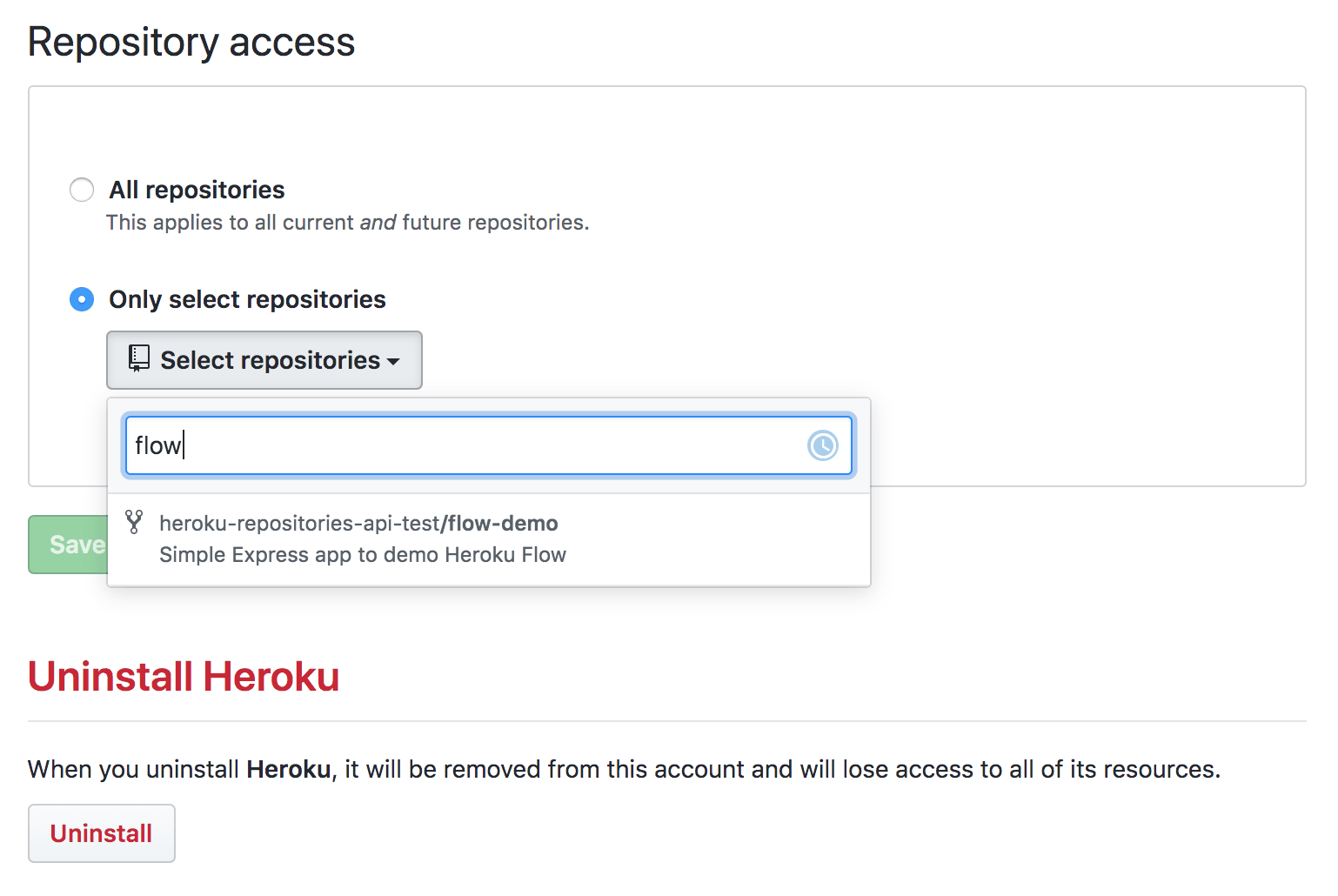
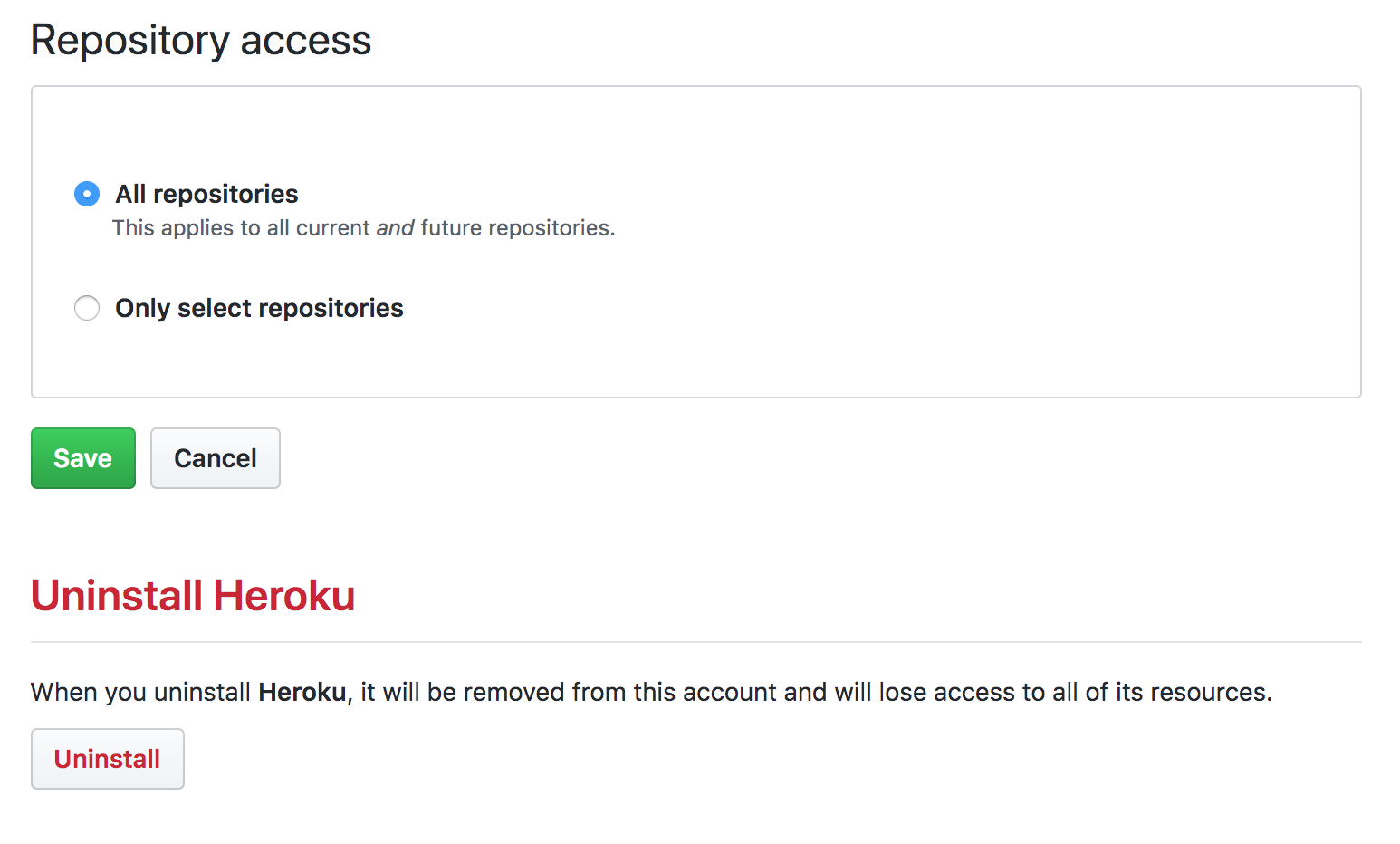
To configure an existing GitHub app installation, select Configure on GitHub and you’re redirected to GitHub where you can change the repository access or uninstall the feature:
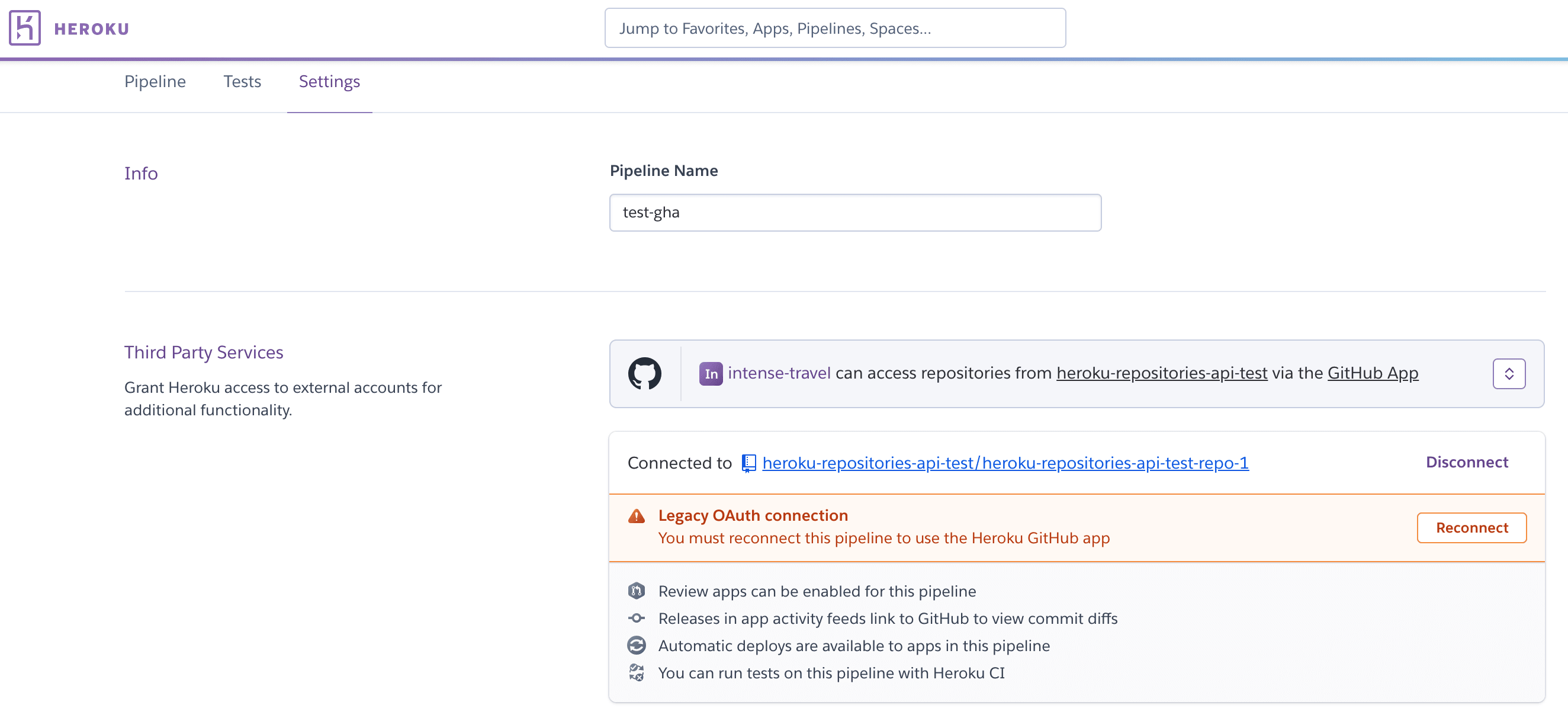
After correctly installing the GitHub app at the Enterprise Account level, you can reconnect all existing OAuth connections to use the new GitHub app:
View GitHub Apps Installations
To see where you installed the Heroku GitHub App if you’re a member of more than one Enterprise Account, select Account Settings from under your profile, then the Applications tab. In the Third-party code providers section, you can see all the Enterprise Accounts that have the GitHub app installed.

You can only link a GitHub org to one Enterprise Account at a time. To link a GitHub org that’s already linked to another Enterprise Account, you must uninstall it first.
Heroku Buttons don’t work with private repositories that the user doesn’t have access to. Heroku Buttons also don’t work with repositories that are outside the GitHub org used with the Heroku GitHub App. Connecting to a pipeline fails when you install GitHub App at the Enterprise Account level and:
- A user wants to connect a pipeline within that Enterprise Account to a private repo outside the GitHub org that’s linked to the Enterprise Account.
- A user wants to connect a pipeline inside the GitHub org but a repo that the user doesn’t have access to.
Testing and Roll-out
We highly recommend a testing period, especially if you have more than 20 pipelines because there’s no easy way to switch back after you’re using GitHug App across all your pipelines. You can create an Enterprise Team for testing, or use an existing one with non-critical apps and pipelines. Users in this test Enterprise Team can see the new GitHub app installation and either use it for new pipelines or change the GitHub installation for existing pipelines from legacy OAuth connections to the Heroku GitHub App.
After completing the testing period and you want to continue, all the Enterprise Teams across your Enterprise Account can then see and use the new Heroku GitHub App installation.
Uninstalling the GitHub App
Uninstalling the GitHub app disconnected all your pipelines and apps. There’s no easy way to go back to your previous configuration via personal OAuth tokens other than manually connecting each pipeline to the right GitHub repo again.
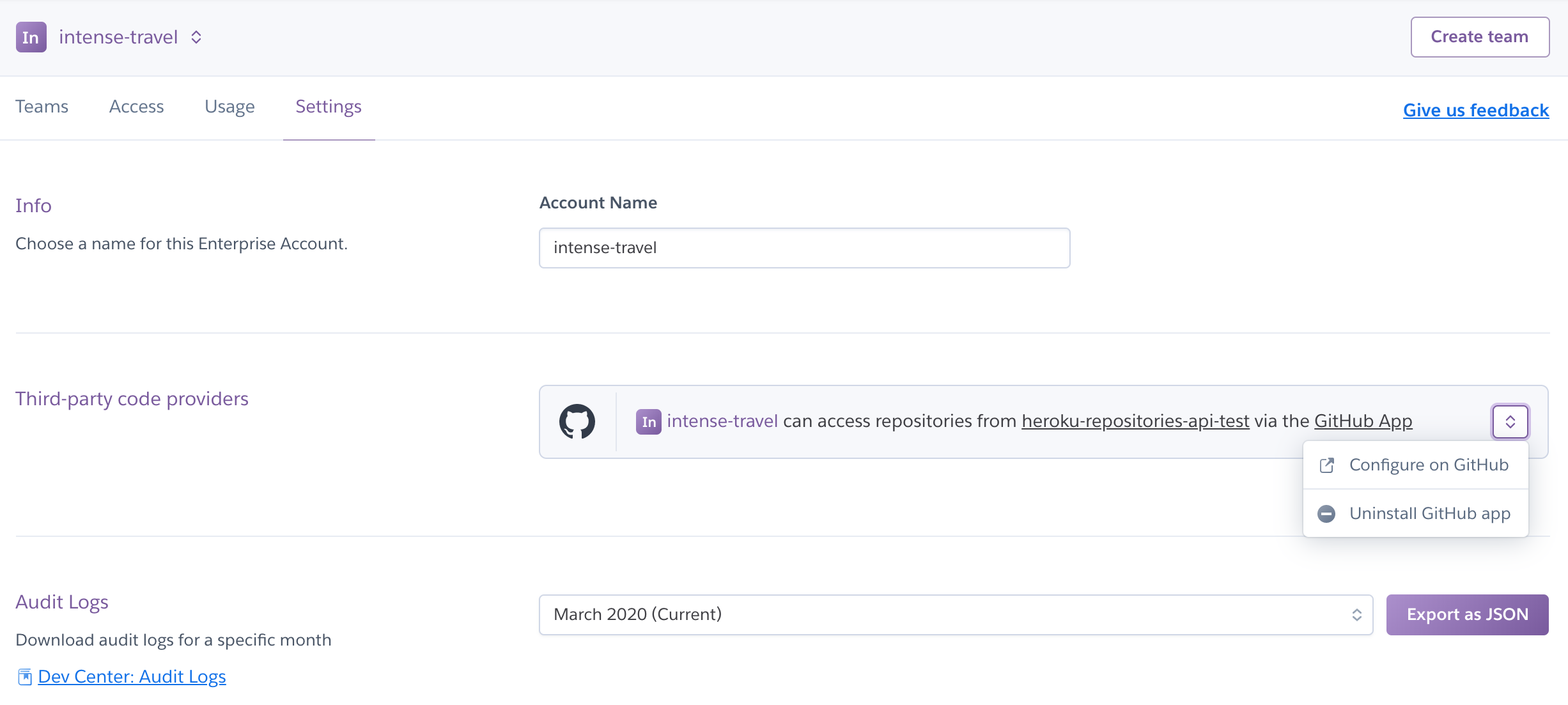
To uninstall, navigate to the Settings tab of the Enterprise Account and select Uninstall GitHub app:
Heroku redirects you to GitHub to uninstall Heroku:
After installing, reconnect all your pipelines to GitHub using the personal OAuth tokens again.
Contact Heroku to uninstall and disable your Heroku GitHub App feature. You can’t reconnect your pipelines to GitHub using personal OAuth tokens.
Limitations
There’s a 1:1 relationship between your Enterprise Account and GitHub org. If you have any pipelines using repositories outside the GitHub org, fork and move them to the main GitHub org before configuring the integration.
You can only link a GitHub org to one Enterprise Account at a time. If you linked your GitHub org to an Enterprise Account, and want to link it to a different one, you must uninstall the integration first.
If you set up the GitHub server to block requests, the installation fails. Heroku Support can assist in allowlisting the Heroku integration.
Heroku Buttons don’t work with private repositories if the user launching it doesn’t have access to the repos.