Table of Contents [expand]
Last updated June 04, 2026
View, create, and manage your connections, authorizations, and app publications on the Heroku AppLink dashboard. This article covers the dashboard’s features.
Open the Dashboard
Run the heroku addons:open heroku-applink command to open the dashboard in your browser.
You can also open the dashboard by navigating to the Resources tab of your app, and clicking the Heroku AppLink add-on in the Add-ons section.
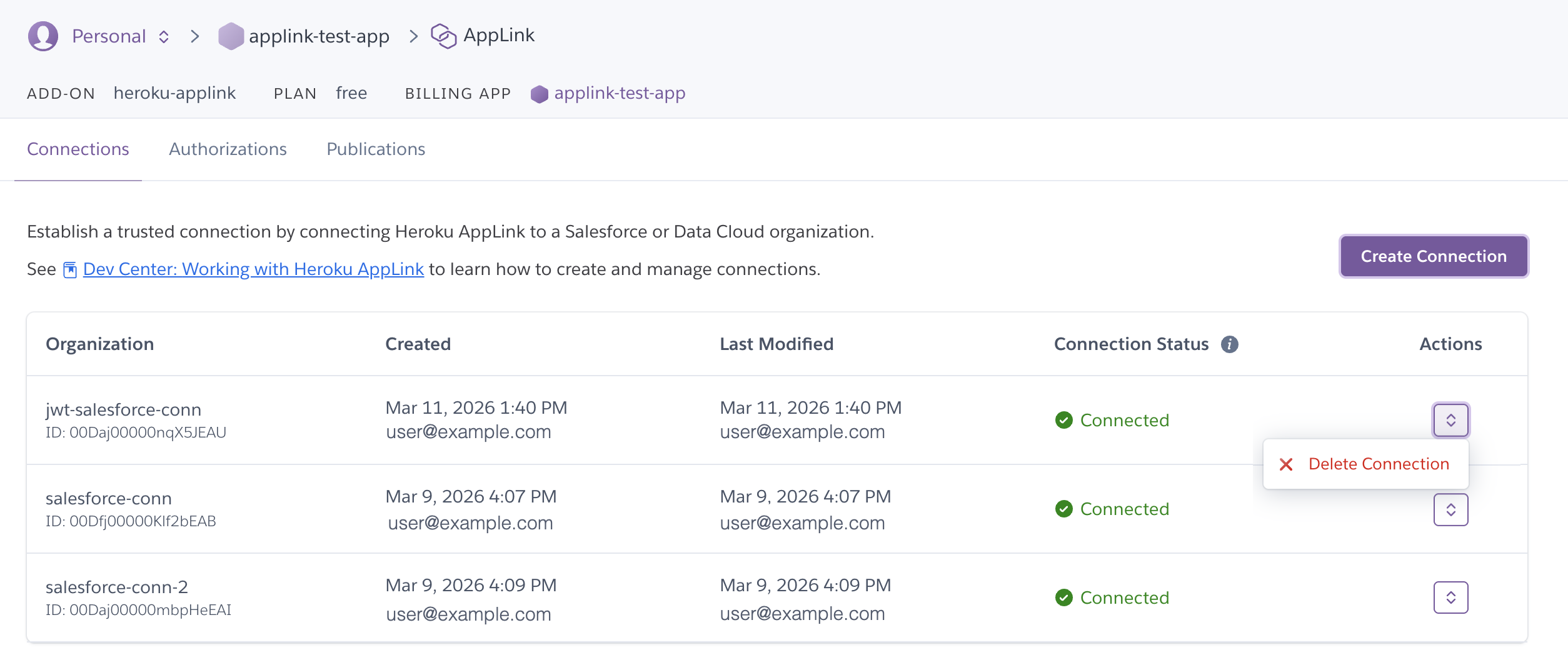
Connections Tab
The Connections tab lists all the connections you created between your Heroku AppLink add-on and your Salesforce and Data Cloud orgs. You can create connections with the Create Connection button.
This tab lists:
Organization: The name given to the connection when connecting the org and the Salesforce Organization ID.Created: The time when the connection was created and the email of the user who created it.Last Modified: The time when the connection was last modified and the email of the user who modified it.Connection Status: The status of the connection. See Connection Statuses for more information.Actions: The options you have for managing a connection. The available option isDelete Connection.
See Connections on Your App for more information.
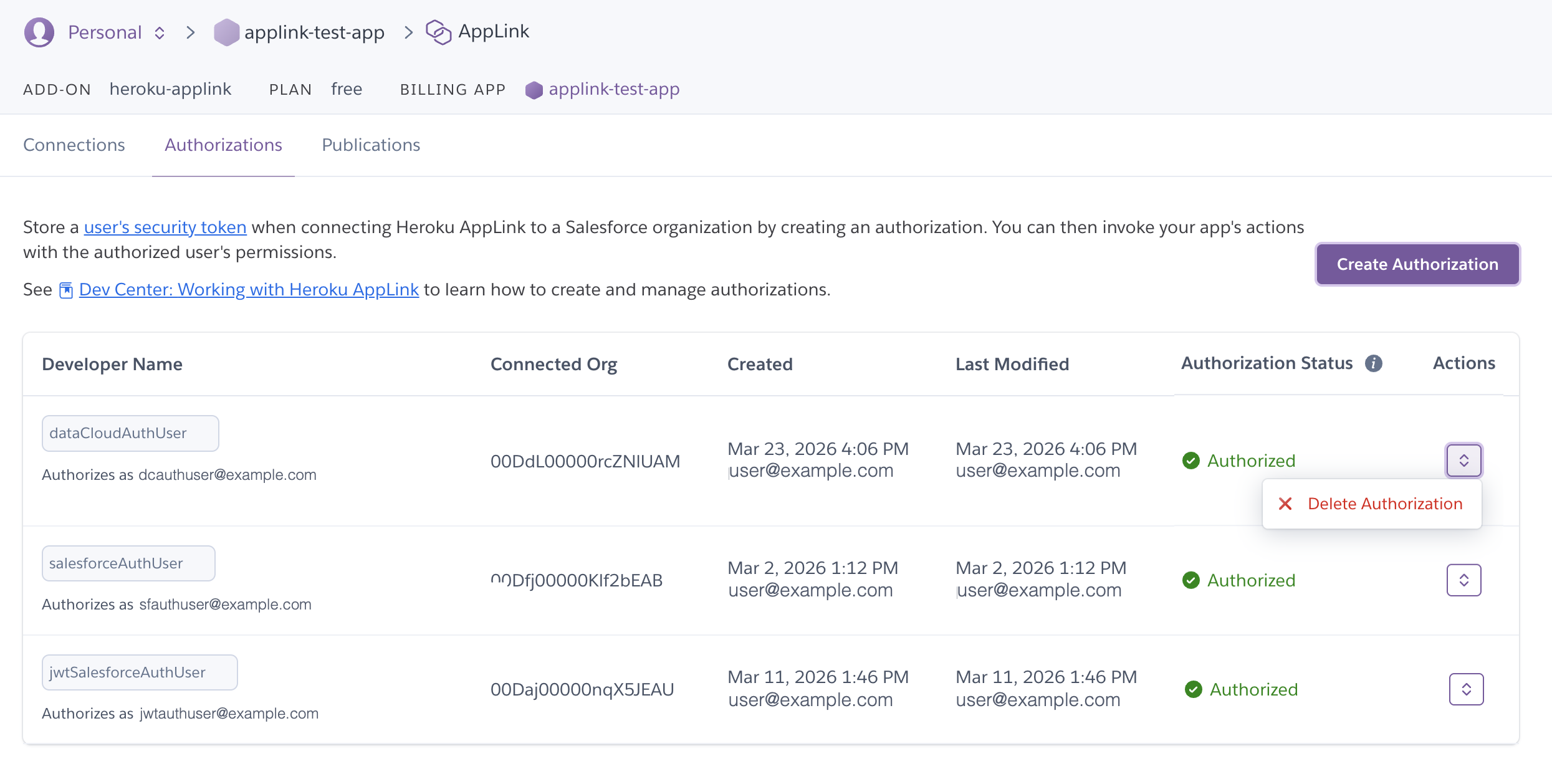
Authorizations Tab
The Authorizations tab lists all the authorizations you created between your Heroku AppLink add-on and your Salesforce and Data Cloud orgs. You can create authorizations with the Create Authorization button.
This tab lists:
Developer Name: The name given to the authorization and Salesforce username when authorizing a user.Connected Org: The Salesforce Organization ID of the connected org.Created: The time when the authorization was created and the email of the user who created it.Last Modified: The time when the authorization was last modified and the email of the user who modified it.Authorization Status: The status of the authorization. See Authorization Statuses for more information.Actions: The options you have for managing an authorization. The available option isDelete Authorization.
See Authorizations on Your App for more information.
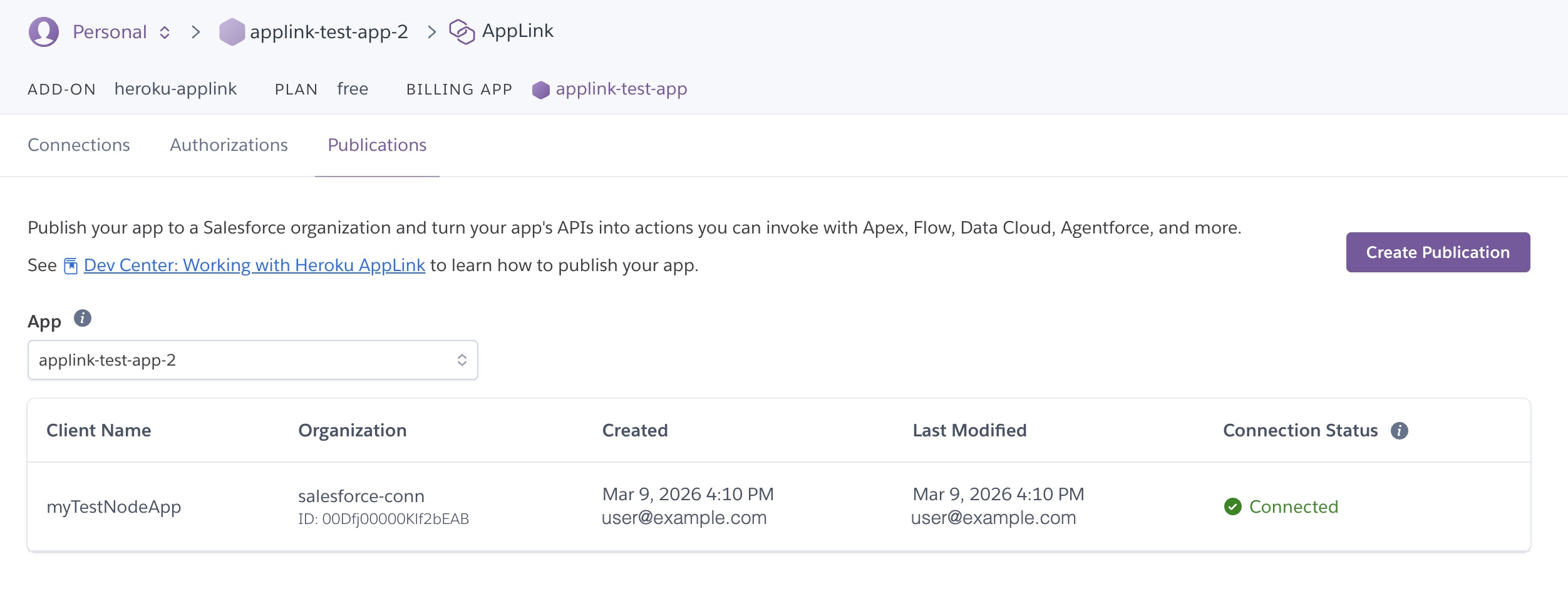
Publications Tab
The Publications tab lists all the Salesforce orgs where you published your app to. You can publish apps with the Publish App button.
This tab lists:
Client Name: The name given to the publication.Organization: The name given to the connection when connecting the org and the Salesforce Organization ID.Created: The time when the publication was created and the email of the user who created it.Last Modified: The time when the publication was last modified and the email of the user who modified it.Connection Status: The status of the connection. See Connection Statuses for more information.
If you published more than one app, the tab also shows an App dropdown. Use the App dropdown to specify which app to show your publications.
See Publish Your App for more information.